Python is a programming language we will use throughout the workshop. This guide walks you through installing the latest version (3.14) on your computer.
Estimated time: 5–10 minutes
Mac
Step 1: Download Python
- Go to python.org/downloads
- Click the Download Python 3.14.x button — it will automatically show the latest version
- The file (
python-3.14.x-macos11.pkg) will appear in your Downloads folder when it’s finished
Step 2: Run the installer
- Open your Downloads folder and double-click the
.pkgfile you just downloaded - A window will open — click Continue on each screen, then click Install
- You may be asked to enter your Mac password to allow the installation — this is normal
- When you see “The installation was successful”, click Close
Step 3: Verify the installation
- Open Terminal — press Command + Space to open Spotlight, type
Terminal, and press Enter - Type the following and press Enter:
python3 --version - You should see something like
Python 3.14.xprinted — this confirms Python is installed correctly
Windows
Step 1: Download Python
- Go to python.org/downloads
- Click the Download Python 3.14.x button
- The file (
python-3.14.x-amd64.exe) will appear in your Downloads folder when it’s finished
Step 2: Run the installer
-
Open your Downloads folder and double-click the
.exefile you just downloaded -
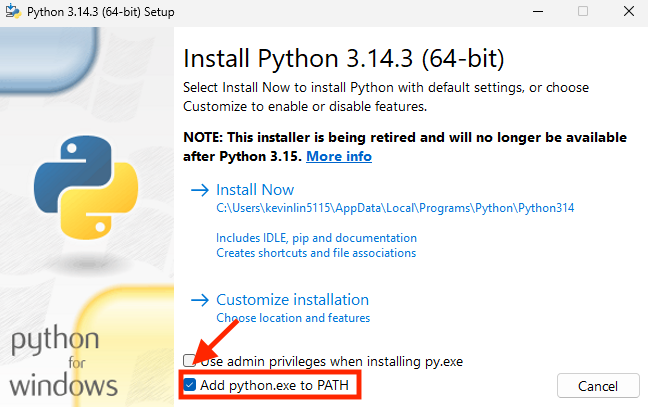
Important: Before clicking anything else, check the box at the bottom that says “Add python.exe to PATH” — this step is easy to miss and required for Python to work correctly
-
Click Install Now and wait for the installation to complete
-
When you see “Setup was successful”, click Close
Step 3: Verify the installation
- Press the Start button and search for Command Prompt, then open it
- Type the following and press Enter:
python --version - You should see something like
Python 3.14.xprinted — this confirms Python is installed correctly
If you see an error instead: The PATH option may not have been checked during installation. Re-run the installer, click Modify, and make sure “Add Python to environment variables” is checked.