
Node.js lets you run JavaScript on your computer, and npm is its built-in package manager for installing tools and libraries. Both are installed together in a single download.
Estimated time: 5–10 minutes
Mac
Step 1: Download the installer
-
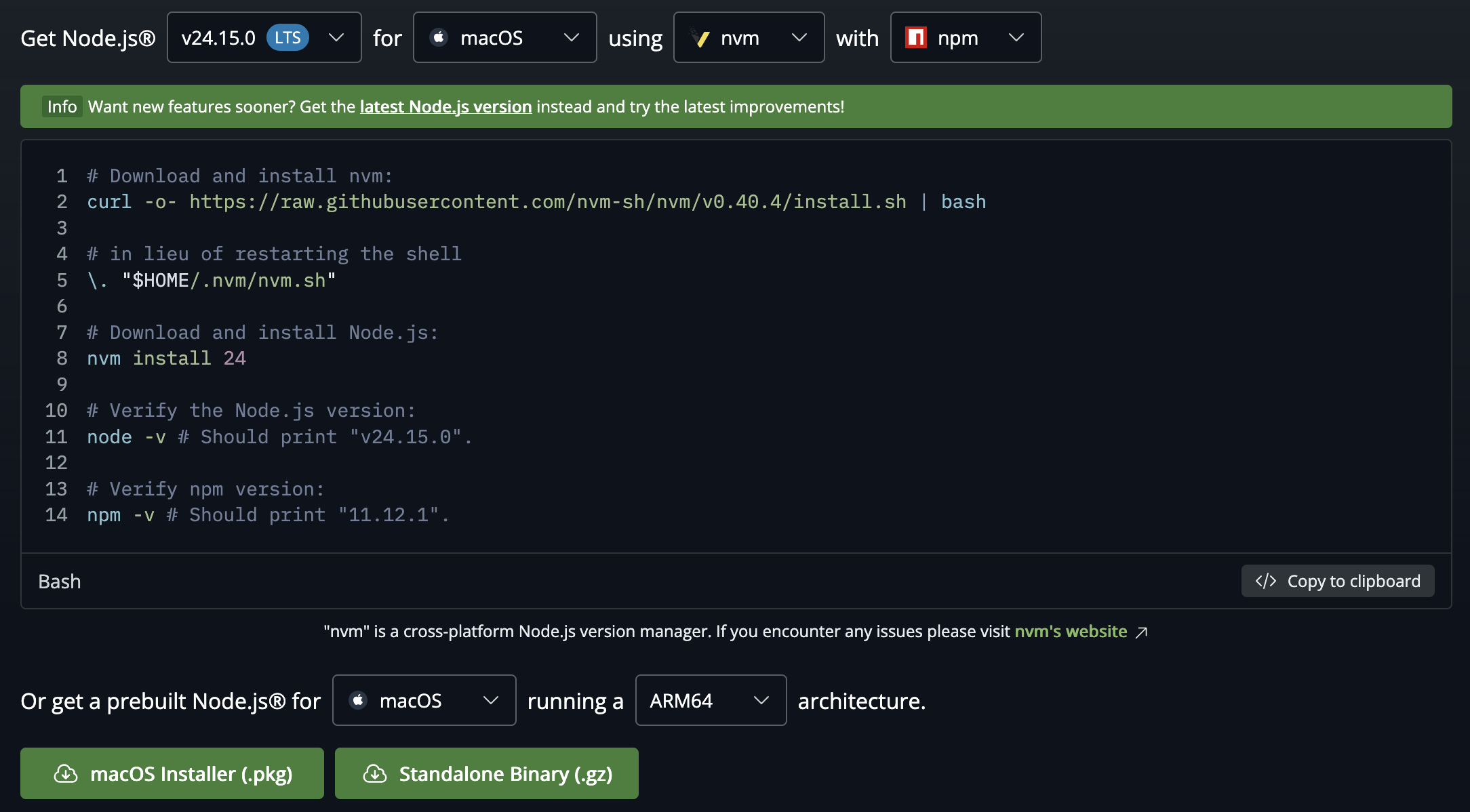
Go to nodejs.org/en/download
-
Scroll past the code block to the bottom of the page
-
Click macOS Installer (.pkg)
Note: The default architecture shown works for most Macs. If you have an older Intel Mac, change the architecture dropdown accordingly.
-
The file will appear in your Downloads folder when it’s finished
Step 2: Run the installer
- Open your Downloads folder and double-click the
.pkgfile you just downloaded - Click Continue on each screen, then click Install
- You may be asked to enter your Mac password — this is normal
- When you see “The installation was successful”, click Close
Step 3: Verify the installation
- Open Terminal — press Command + Space, type
Terminal, and press Enter - Type the following and press Enter:
node --version - You should see something like
v24.x.xprinted - Then type the following to confirm npm is also installed:
npm --version - You should see a version number like
11.x.x
Windows
Step 1: Download the installer
-
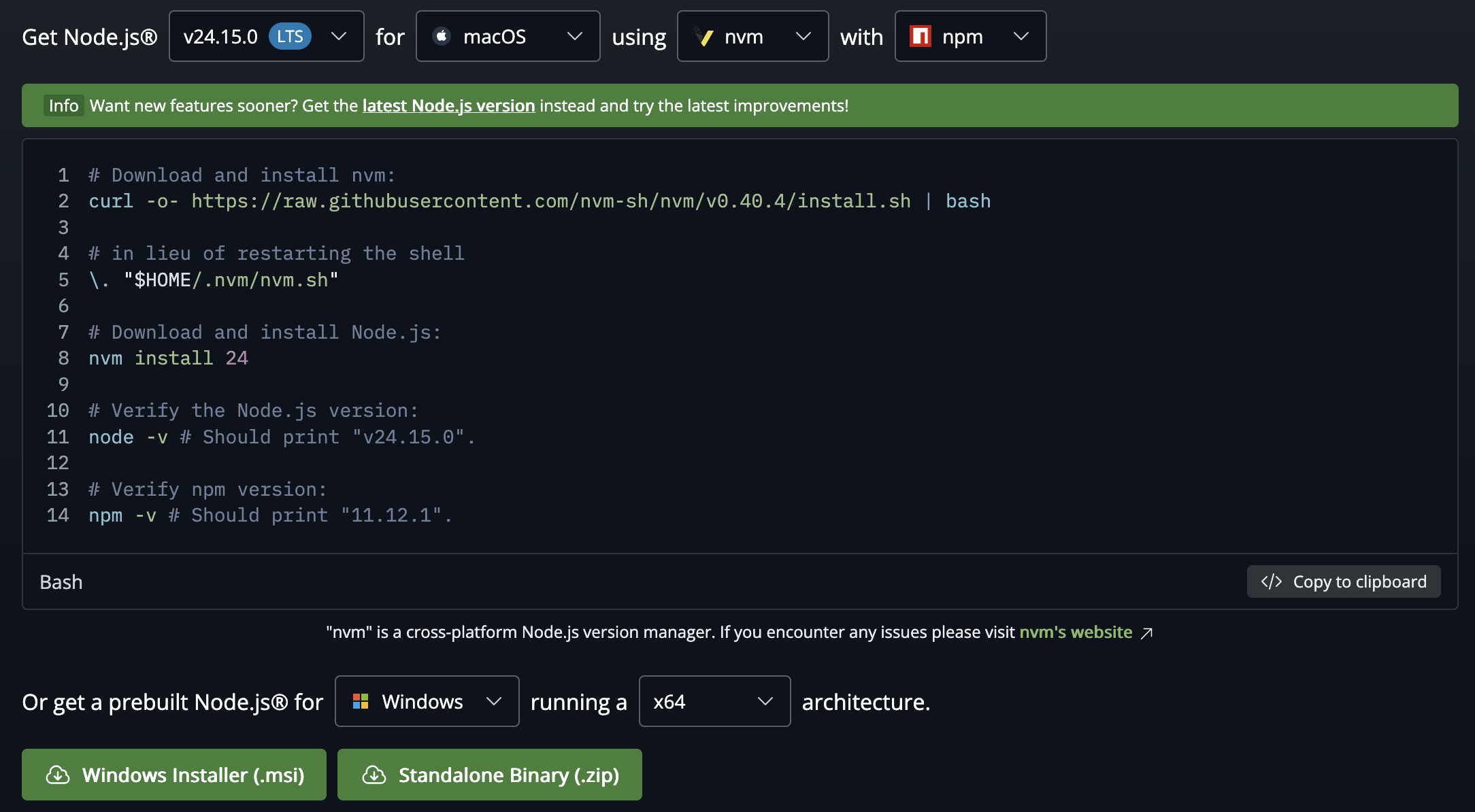
Go to nodejs.org/en/download
-
Scroll past the code block to the bottom of the page
-
Set the dropdowns to Windows and x64, then click Windows Installer (.msi)
Note: x64 works for most Windows computers. If you have an ARM-based device, change the architecture dropdown accordingly.
-
The file will appear in your Downloads folder when it’s finished
Step 2: Run the installer
- Open your Downloads folder and double-click the
.msifile you just downloaded - Click Next on each screen, accepting the default options
- Click Install and wait for the installation to finish
- When complete, click Finish
Step 3: Verify the installation
- Press the Start button, search for Command Prompt, and open it
- Type the following and press Enter:
node --version - You should see something like
v24.x.xprinted - Then type the following to confirm npm is also installed:
npm --version - You should see a version number like
11.x.x
If you see an error: Close and reopen Command Prompt and try again — the installer may need a fresh terminal session to take effect.